IPTV Smarters Pro Setup Guide
IPTV Smarters Pro is the undisputed champion of IPTV streaming clients. It is compatible with Amazon Fire TV Stick, Android TV, Apple TV, iOS, Windows, Mac, LG webOS, and Samsung Tizen.
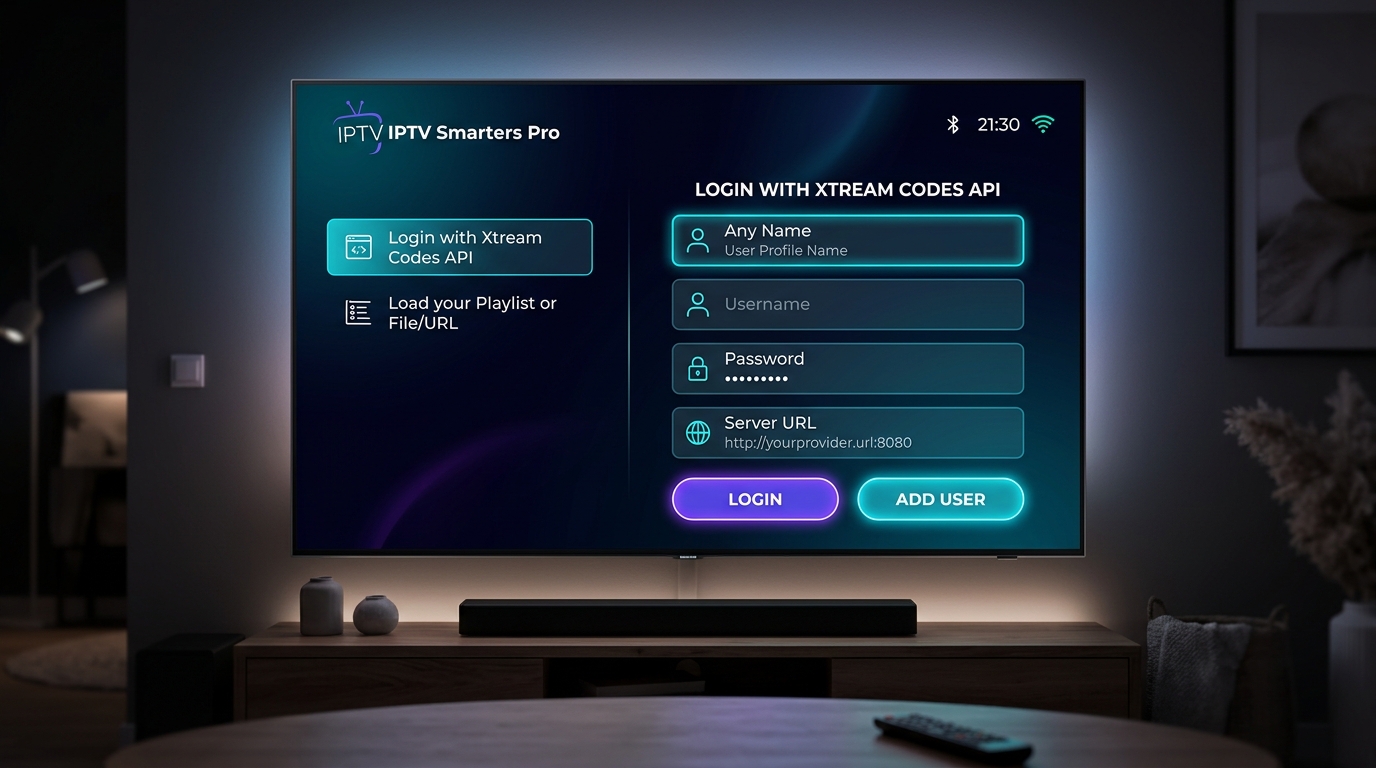 Step 2: Xtream Codes API Login Screen
Install IPTV Smarters Pro on Your Device
Depending on your hardware:
- Firestick / Fire TV: Open the "Downloader" app and enter the official download code (or search directly on the Amazon Appstore if available in your region).
- Android TV / Google TV: Search for "IPTV Smarters Pro" on Google Play Store and click Install.
- Samsung / LG Smart TV: Open the TV Content Store (LG Content Store or Samsung Apps) and search for "IPTV Smarters Pro".
- iOS / Apple TV: Download "Smarters Player Lite" from the Apple App Store.
Download App
Available on Amazon Appstore, Google Play, and Downloader
Select "Login with Xtream Codes API"
Upon opening IPTV Smarters Pro, you will see terms of use and a screen asking to choose your playlist format:
- Choose "Login with Xtream Codes API" (recommended over M3U because it categorizes Live TV, VOD Movies, Series, and auto-updates the EPG guide).
- If you only have an M3U link, choose "Load your Playlist or File/URL".
Fig 1.1: Smarters Login Credentials Form
Enter Your Playlist Credentials
Fill in the four required fields provided by your playlist subscription:
- Any Name: Enter a friendly nickname for your profile (e.g., "Living Room TV").
- Username: Your allocated account username.
- Password: Your allocated account password.
- Server URL: The full server domain with HTTP/HTTPS and port number (e.g.,
http://domain.com:8080).
/) at the end of the Server URL.
Credential Checklist
[Username] -> user_88219
[Password] -> **********
[Server URL] -> http://stream-server.xyz:8080
Click "ADD USER" & Enjoy Your Channels
Click the glowing "ADD USER" button. IPTV Smarters will authenticate with the server and download:
- Live TV Channels: Categorized by countries, sports, and genres.
- VOD Movies & TV Series: Complete with IMDB ratings, synopsis, and episode lists.
- Electronic Program Guide (EPG): TV listings schedule.
Setup Complete!
Your channels and TV guide are now synchronized and ready for viewing.
TiviMate IPTV Player Setup Guide
TiviMate is revered as the finest television interface ever built for IPTV on Android TV and Firestick. It feels identical to premium cable/satellite box guides with zero clunkiness.
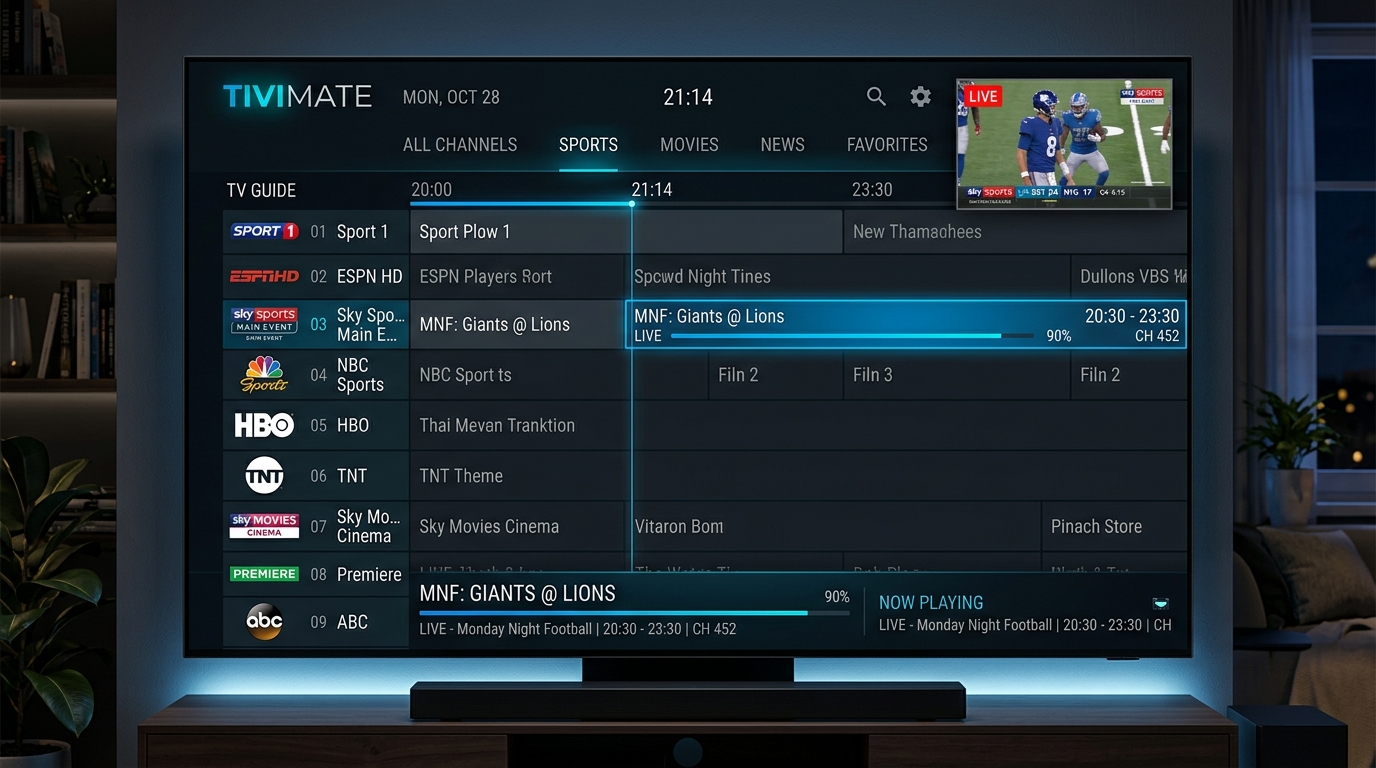 TiviMate • Live TV Guide Grid & Preview
Install TiviMate on Firestick or Android Box
On Google TV or Nvidia Shield, search for "TiviMate IPTV Player" on the Google Play Store. On Amazon Firestick, open Downloader and enter the official TiviMate shortcode (e.g. tivimate.com or Downloader code).
Firestick & Android TV Compatible
Direct remote control navigation with zero pointer latency
Add Playlist (Xtream Codes or M3U Plus)
Launch TiviMate and click "Add Playlist":
- Select Xtream Codes.
- Type in your Server Address, Username, and Password.
- Check the option "Include VOD" if your provider offers on-demand movies.
Playlist Configuration
TiviMate supports unlimited simultaneous playlists with the Premium upgrade, allowing you to combine backup feeds into a single unified TV guide.
Configure TV Guide & EPG XMLTV Source
TiviMate will prompt you to set up your TV Guide (EPG). If you logged in with Xtream Codes, the XMLTV URL is pre-linked.
- Go to Settings > TV Guide > EPG Sources.
- Enable "Update on app start".
- Set update interval to "Every 24 Hours".
- If program schedules are one hour ahead or behind, click your source and adjust the Time Offset (e.g. +1:00 or -1:00).
Fig 2.1: TiviMate High-Def EPG Interface
Organize Favorites & Optimize Buffer Size
Navigate through the EPG, highlight any channel, and press and hold the OK / Center button on your remote. Select "Add to Favorites".
Favorites Hub Created
Your top sports, news, and movie channels appear right at the top of your TV guide.
IBO Player Smart TV Setup Guide
IBO Player is designed specifically for Samsung Smart TVs (Tizen OS) and LG Smart TVs (webOS). It eliminates the hassle of typing long M3U URLs with a TV remote.
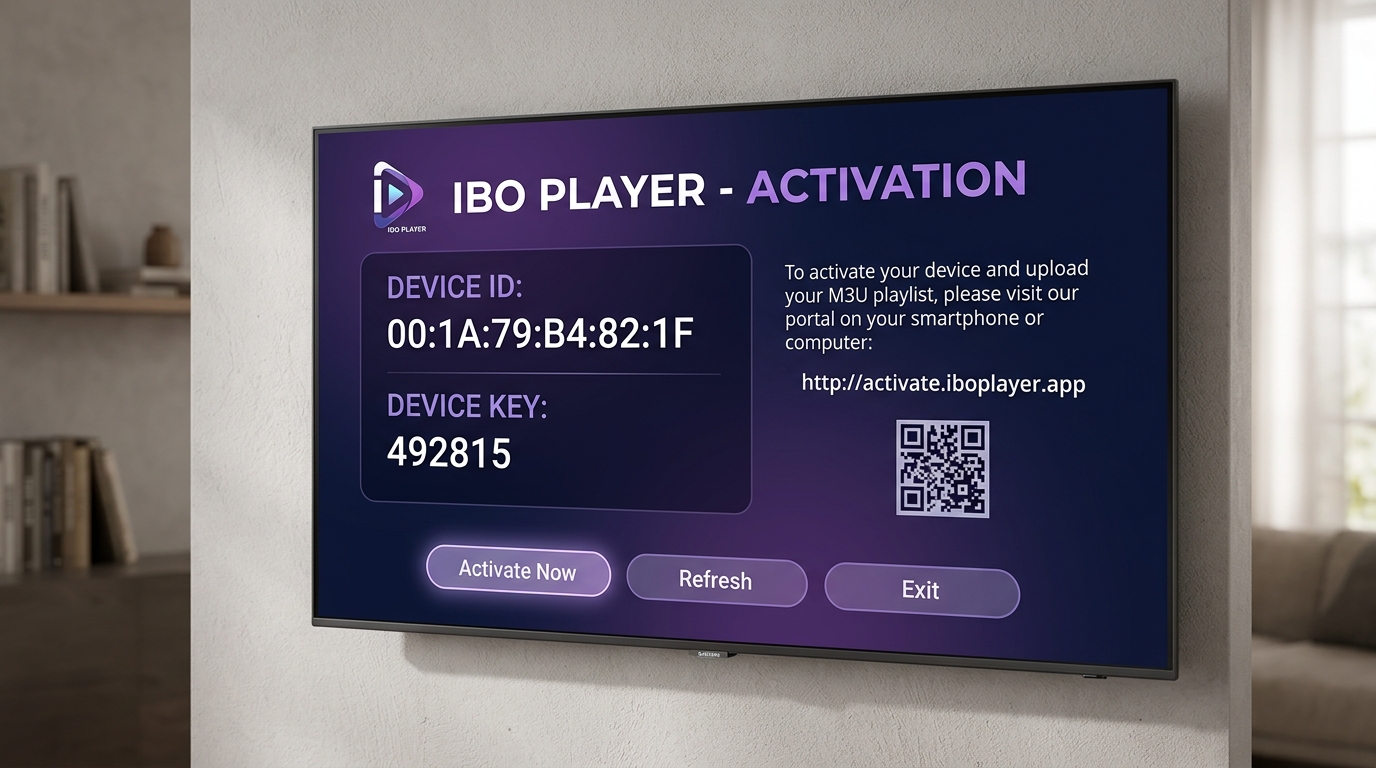 Step 2: IBO Player Device ID & Key Screen
Install IBO Player from Your TV Store
Turn on your Smart TV (Samsung, LG, or Android TV). Open the TV's official App Store, search for "IBO Player", and click Install.
Official TV App Store
Direct download on Samsung Tizen & LG webOS
Note Your Device ID & Device Key
Open the IBO Player app on your TV. The welcome activation screen will appear, showing your unique hardware credentials:
- Device ID: (e.g.
00:1A:79:B4:82:1F) - Device Key: (e.g.
492815)
Fig 3.1: IBO Player TV Activation Display
Upload Playlist via the Web Portal
On your phone, tablet, or laptop, open your web browser and go to the official IBO upload portal (or scan the QR code displayed on your TV screen):
- Enter your Device ID and Device Key into the login fields and click Login.
- Click on "Add XC Playlist" (for Xtream API) or "Add Playlist" (for M3U link).
- Paste your playlist URL or Xtream credentials and click Save.
Remote Web Upload
No more typing 150-character M3U links with a TV remote. Copy-paste directly from your provider email on your computer or phone!
Return to Your TV and Click "Refresh"
Look at your TV screen. Click the on-screen "Refresh" button (or restart the IBO Player app). Your channels, categories, and program guide will immediately load onto your Smart TV.
Synced to Smart TV
Your playlist is now actively stored and synced to your television.
XCIPTV Player Setup Guide
XCIPTV features a customizable modern dashboard layout, dual integrated playback engines (ExoPlayer + VLC), and built-in parental control protection.
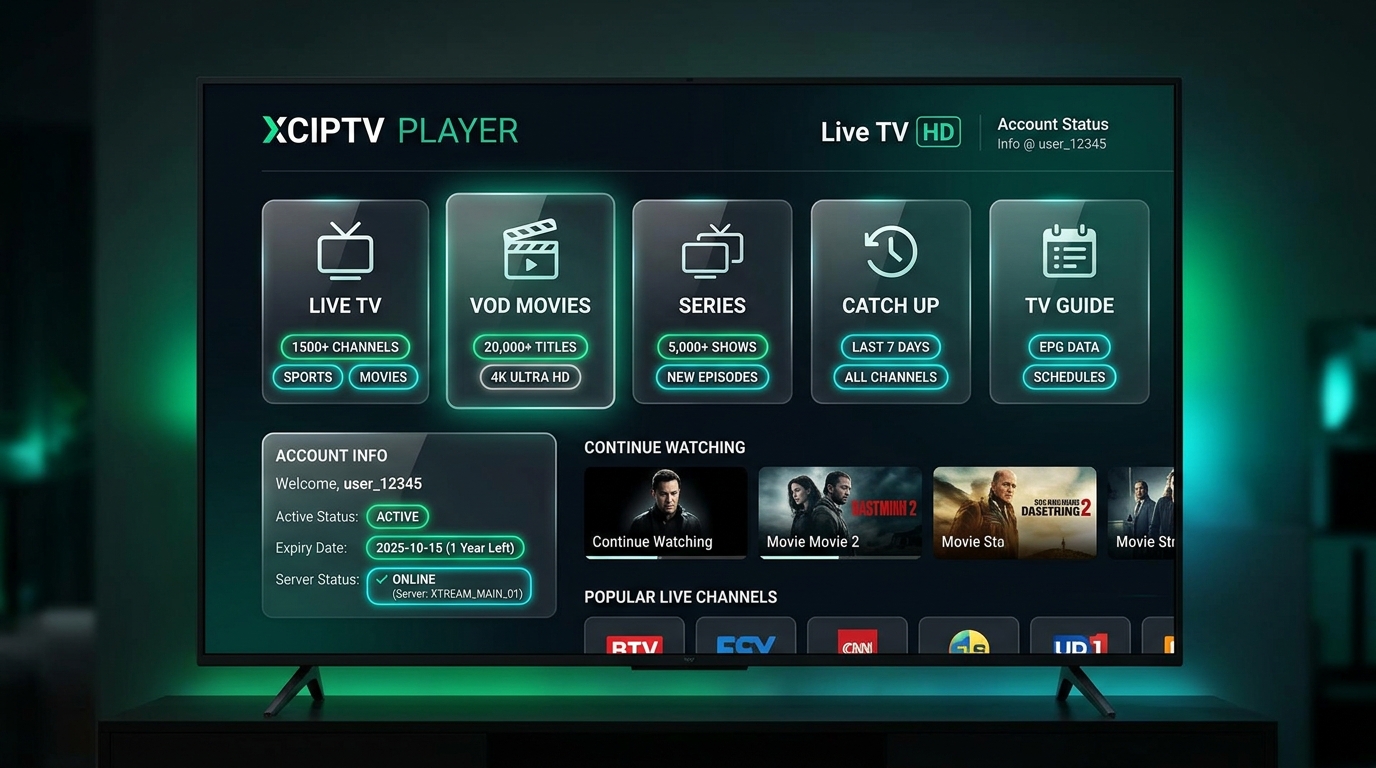 XCIPTV Player • Main Dashboard Layout
Install XCIPTV Player
Download XCIPTV from Google Play Store or sideload via Downloader on Firestick. Launch the application.
Direct Install
Enter Xtream Codes Credentials
Type in your Server URL, Username, and Password on the login screen. Click Sign In.
Fig 4.1: XCIPTV Dashboard Overview
Encountering Buffering or Audio Issues?
Check our comprehensive Channels & EPG troubleshooting guide to learn how to adjust hardware decoders, buffer sizing, and bypass ISP throttling.
Open Troubleshooting Guide